LMS: User admin: LMS Password reset and accessing via 2FA - Microsoft
Authenticator:
Follow
the below steps
1) Add Microsoft Authenticator/ Remove all existing LMS 2FA
account if available.
2)
Proceed to perform password reset via LMS login page and update new 2 FA
account.
3) Liaise
with Local IT to sync the PC time zone with Internet time zone.
4) Then
proceed to access LMS.
Add Authenticator:
Would
like to inform you that LMS can be accessed via 2FA in two ways:
1. Microsoft Authenticator Application in Handset.
2. Microsoft Authenticator Extension in Chrome Browser.
Chrome Authenticator - 2FA without Phone
Install
Authenticator on your computer
- Download Google Chrome and install it on your
computer.
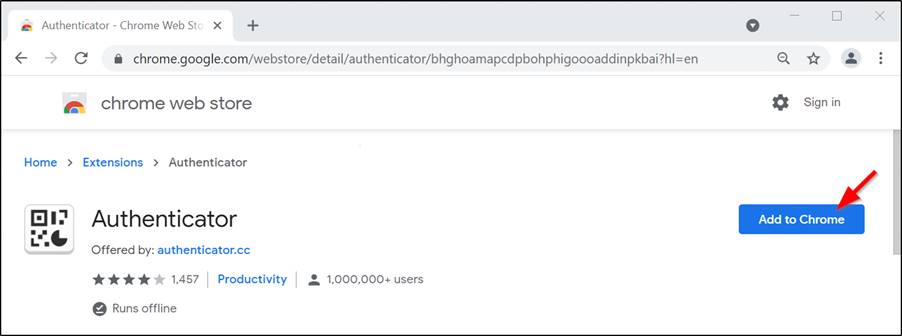
- In Chrome, go to the Authenticator, and click Add to Chrome.
·
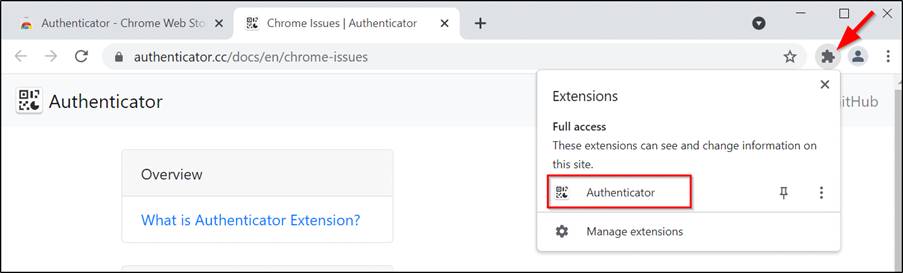
After you
have successfully added the Authenticator extension, an icon will display at
the top right corner of your browser window.
2FA in Phone:
Can download Microsoft
Authenticator application from play store.
Remove the existing 2FA:
1)
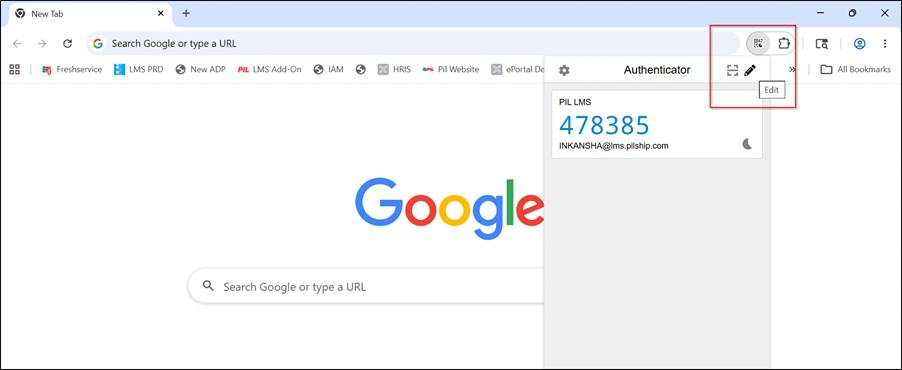
Click the
Chrome extension
2)
Click Edit
button
3)
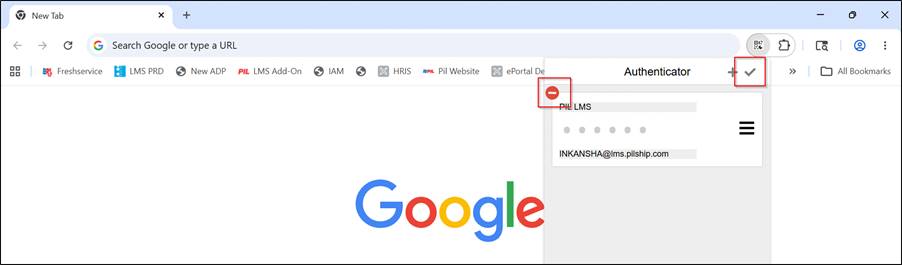
Click Minus
button to remove the 2FA
4)
Click tick
to update the changes.
Password reset steps:
·
Try
to reset the password of the respective user ID via the LMS login page ' https://lms.pilship.com/opuscntr/SignOn.do' by clicking on 'Reset password &
unlock user ID'
·
May
receive an email with a reset password URL.
·
Click
on the URL, and re-directed to the reset password screen.
·
Key
in the reset password (which was received in the email) in the 'Old password'
column.
Then
log in with a new password in LMS, and a new QR code will be shown.
Once
the user performed a password reset, then the QR code will get reset.
If you have already performed the
password, pls proceed to add the 2FA account
Add 2FA account:
Browser
Scan
the new QR code to add the account in the Microsoft Authenticator extension in
Google Chrome and use OTP to access LMS.
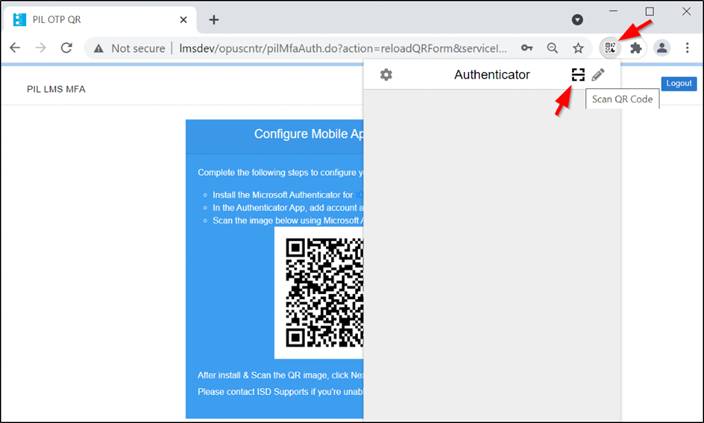
1. You will be prompted with the QR
code. Click Authenticator extension.
2. Click Scan QR Code.
3. After you have added the QR code,
click Next.
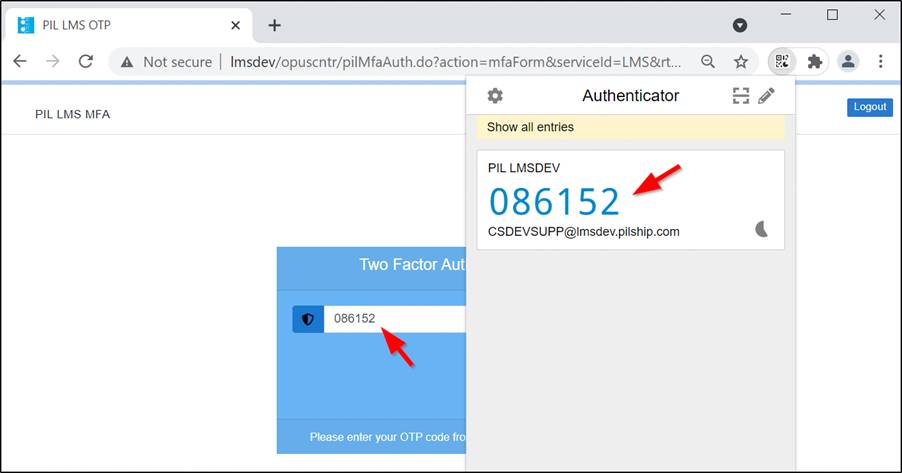
4. Click on the Authenticator and
you will see the changing 6-digit code.
5. Copy and paste the 6-digit generated code and
click Submit.
Mobile:
Scan the QR code via
Authenticator application in mobile
Time Synchronization:
System:
Mobile Phone, or PC where you installed the Authenticator Apps, the time
must be synched with Internet time, ensure your phone/PC synch with Internet
time
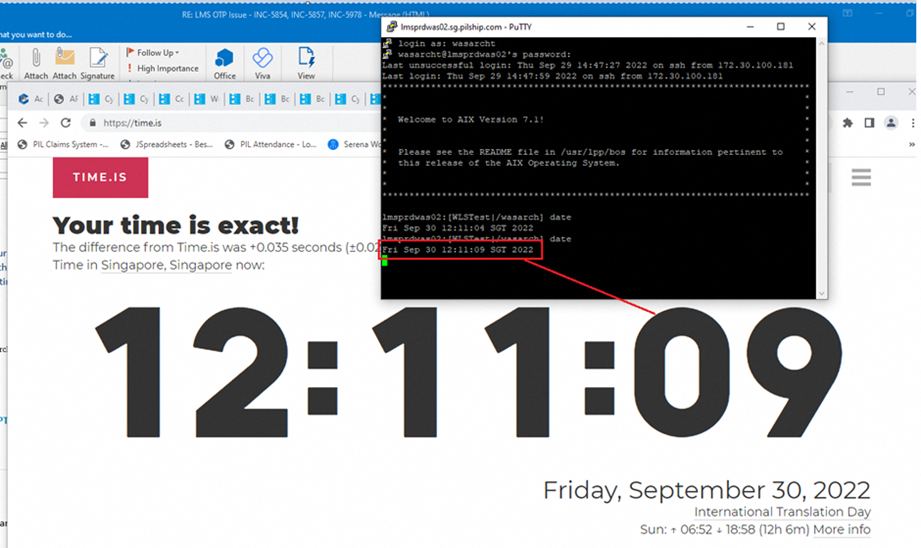
Please refer to this URL https://time.is/ to check your phone/PC
time
The sample below screenshot is item #1,
one of the server time is synched with internet time, you
may check your phone/PC where you installed the authenticator.
Fix_Android_Time_Issue
Disable and Re-enable back Date Time Synchronization setting to resolve
Android Time issue
1. Open the Settings on
your phone.
2. Scroll down and
tap System.

3. Tap Date
& time.


4. Tap the toggle next
to Use network-provided time to disable the automatic time.
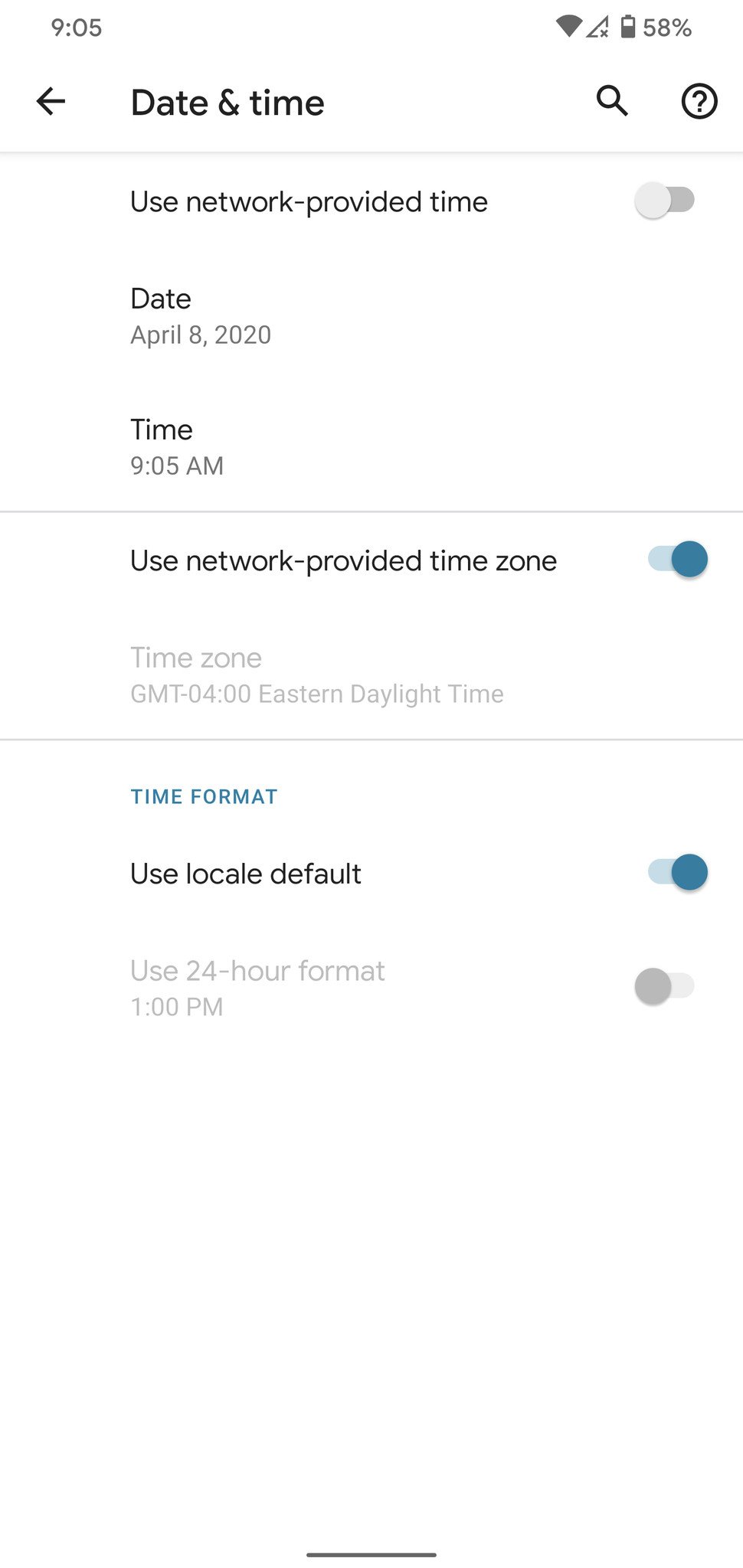
5. Tap that
same toggle again to re-enable it.